The Console tab
The panel at the foot of the main screen carries two tabs. Flight log is Fido's own narration — what it scanned, what it found, what it opened. Console is something else entirely: a real shell, at the selected location, running inside Fido.
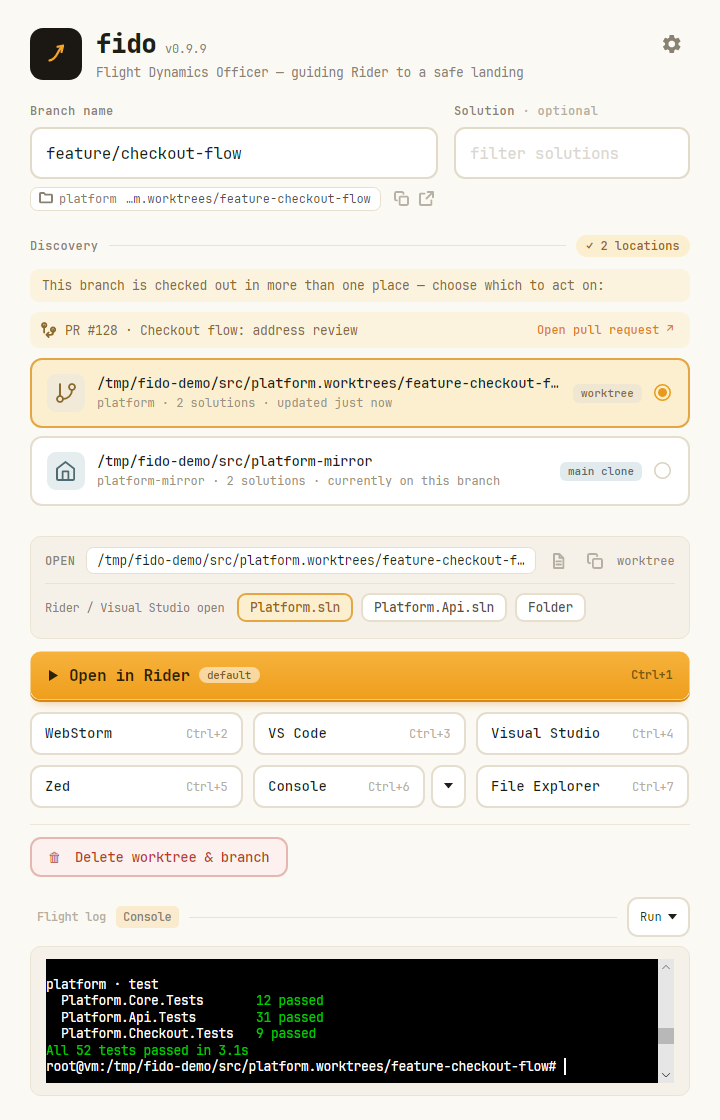
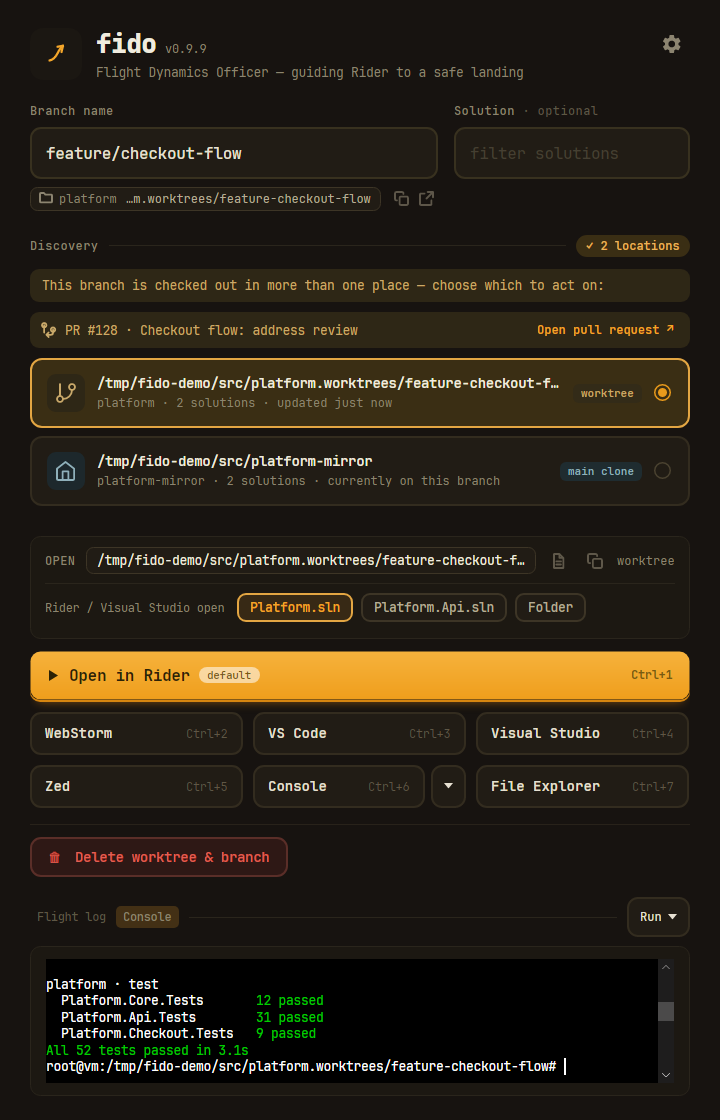
Three things Fido calls a console
The word does a lot of work in one window, so:
| What it is | Where it runs | |
|---|---|---|
| Console (tab) | Fido's own terminal, under the open actions | In Fido, at the selected location |
| Console (tool) | A tool like any other — grid button, its Ctrl+N shortcut, CLI slug term |
Your terminal, opened at the folder |
| Flight log (tab) | Not a console at all: the narration of the scan and the launch | Nowhere — it's a log |
They are deliberately separate. The tool is a launch: it hands the folder to the terminal you have set up, with your prompt and your profile, and Fido steps out of the way. The tab is for the times the output is the point — a build, a test run, a script that fails — and you want it beside the flight log rather than in a window that closes.
Opening one
Clicking Console starts a shell at the selected location. Nothing starts before that: the tab is what asks for a shell, so having it there costs nothing, and Fido never spawns one on launch just in case.
Until there is somewhere to run, the pane says so — "Find a branch and pick a location — the console opens there." A placement card keeps that placeholder too: the worktree it offers doesn't exist yet, and there is no folder to open a shell in until you open it.
What you get is a shell, not a viewer: it takes the focus when it starts, and you can type into it exactly as you would in any terminal.
The Run menu
The right-hand end of the tab row belongs to whichever tab is showing: the flight log's copy and save buttons, or the console's Run menu.
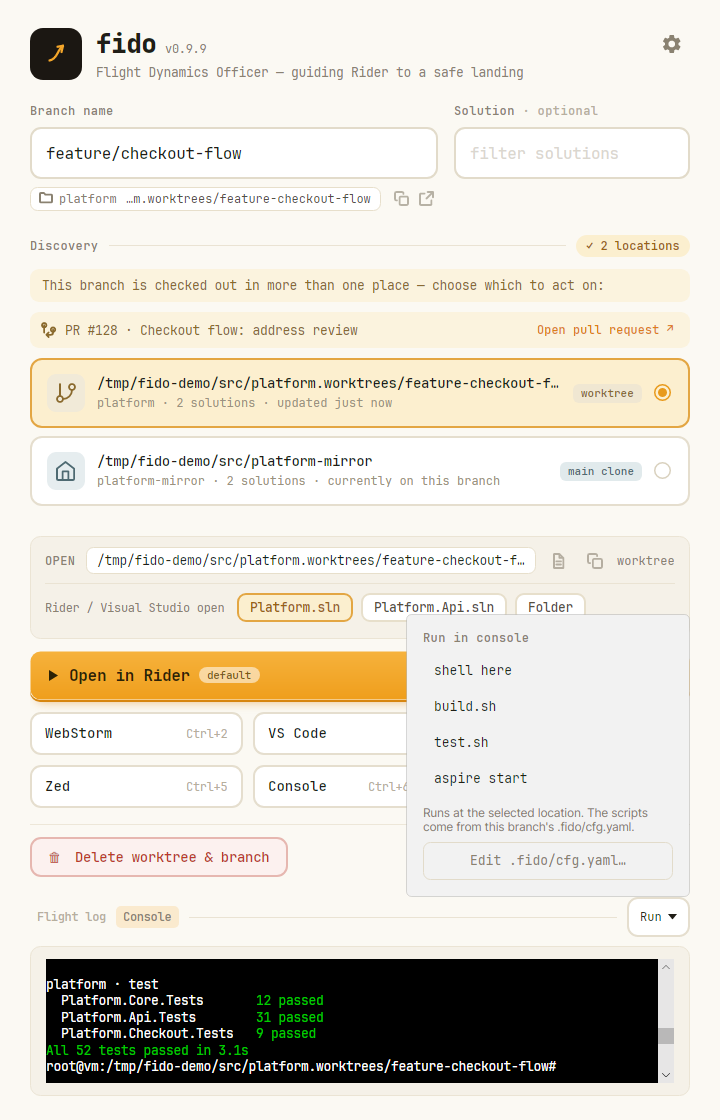
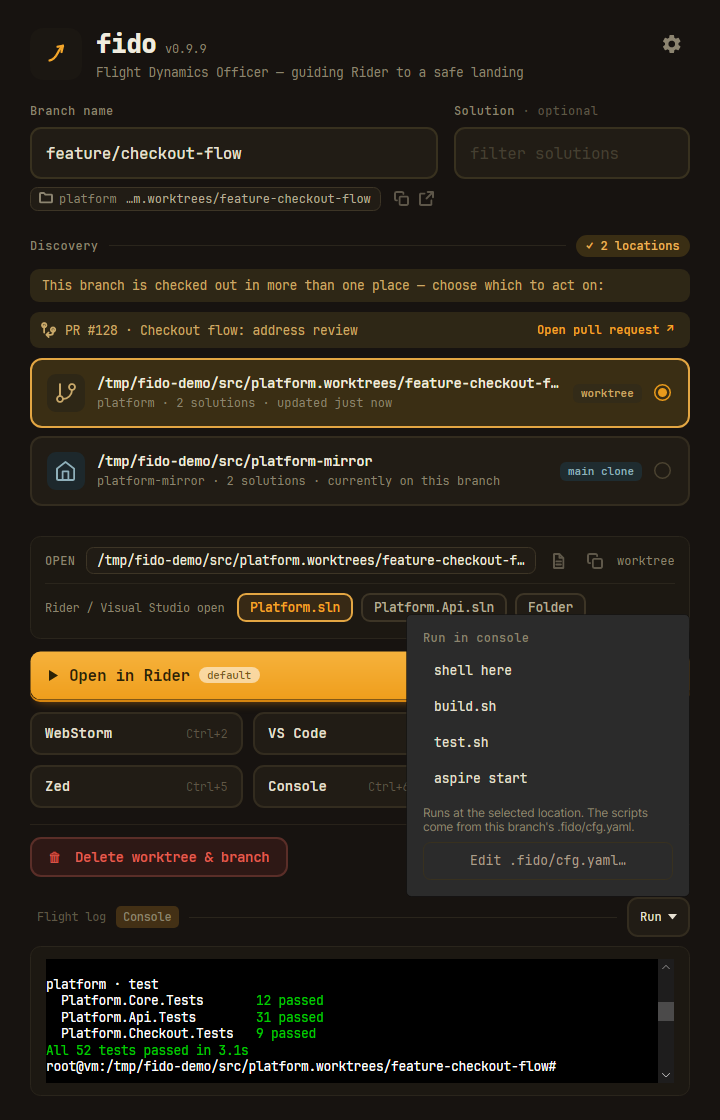
It always leads with shell here — a plain interactive shell, nothing run — and then lists the
commands the branch's .fido/cfg.yaml nominated, in the order it listed
them. Edit .fido/cfg.yaml… sits at the foot, for when you're already in there wanting another
entry.
- Every pick runs here, in the pane below the menu. This menu exists to drive that pane; the Run it in Fido's Console tab setting governs the Console tool button's menu, and has no say over a tab you are already looking at.
- Each pick replaces what's running with a fresh shell rather than typing into the live one: the folder may have changed with the selection, and a shell sitting mid-command — or in a pager — would swallow the input.
- Picking from the menu while the flight log is showing switches to the Console tab first, so the output isn't produced behind your back.
- The menu is disabled until discovery has found the branch, like every other open action.
Which shell, and what it runs
Fido owns the pseudo-terminal here, so there is no terminal emulator in the way and no folder argument to negotiate — the shell simply starts in the right place. All that's left to choose is which one:
- Windows — PowerShell 7 (
pwsh) when it's installed, else the in-box Windows PowerShell. A command runs first and-NoExitkeeps the prompt afterwards. - macOS and Linux — your login shell from
SHELL(falling back tobash, thensh), started interactive so your rc file, prompt and aliases are the ones you know. The command runs, then the shellexecs itself interactively.
The command conventions are shared with the launch path — a .ps1 goes to PowerShell, a root
.sh is invoked as ./name — so a command behaves the same whichever console it lands in. One
wrinkle is Windows-only: PowerShell does not look in the current directory for something it's
asked to run, so a script in the tree root is made explicitly relative (& ./build.ps1).
Otherwise build.ps1 comes back "not recognized as the name of a cmdlet…" while you stand in the
very folder holding it.
A real terminal, not a pipe
The pane is a pseudo-terminal, not redirected output. Everything that checks isatty — which
is most build tooling — keeps its colour and progress rendering; anything that prompts
has somewhere to type; Ctrl+C reaches the program. And because the shell stays
interactive after the command finishes, a failed script leaves its output on screen with a
live prompt underneath, rather than vanishing with an exit code. That is the whole reason for
running it here rather than in a window that closes.
The keyboard is the shell's too. While the console has focus, Fido's own keyboard shortcuts stand aside — Ctrl+K and Ctrl+L mean something to a shell, chord or no chord — and come back as soon as you click outside it.
Following a link
A URL the console prints is a link you can follow: a dev server's
http://localhost:5173, the pull-request link git push answers with, a build's report.
Hovering one underlines it and turns the pointer into a hand; Ctrl + click opens it in
your default browser — the gesture every other terminal uses. A plain click still selects text.
Two kinds count. Text that reads as a URL, and one a program declares with an OSC 8 escape — where the screen says "view the report" and the URL rides along in the escape sequence, unseen. Both are treated alike, and both wrap across lines without breaking.
Only http and https go anywhere, and the flight log names what went:
That line is not decoration: a declared link needn't show its target at all, so the log is the one
place you get to read what your click actually opened. Anything else is refused out loud —
⚠ Not opening file:///… — the console only follows http and https links. — because "open" means
handing the string to the OS, and a scheme other than the web's can be a registered program rather
than a page.
Before it runs, and after it finishes
- Up to date first. A run command from this menu fast-forwards the target onto
originexactly as the tool button's menu does — see Up to date before it runs. shell here skips it: opening a shell to look around isn't running the thing. - Fido stays put. A run in the tab never triggers close after opening, however that setting is set — nothing has been handed over, and the output is here.
- Switching tabs doesn't kill it. The pane is kept loaded, so a trip to the flight log and back finds the shell where you left it: its scrollback is the record of what just ran.
- Closing Fido stops it. The shell is a child process of Fido, and an orphan with no terminal attached would only linger.
Its colours
Out of the box the console keeps the terminal emulator's own sixteen colours — the plain, high-contrast ones every terminal starts life with. It is a console, and it looks like one.
What it does not keep is the emulator's ground. That follows the theme: black on white when Fido is light, white on black when it is dark. A terminal ships one scheme, built for a dark desktop, and a black box sitting in a cream window doesn't read as a plain console — it reads as something broken. The contrast floor below is what keeps those sixteen — every one of them chosen against black — legible once the ground turns pale.
Settings → Theme → Colour the Console tab to match swaps that for Fido's own palette: the
same brushes the flight log draws with, so a script's green ok and Fido's own ✓ are the same
green, on the same warm ground, in whichever theme you are running. Untick it again and the
emulator's own sixteen come straight back.
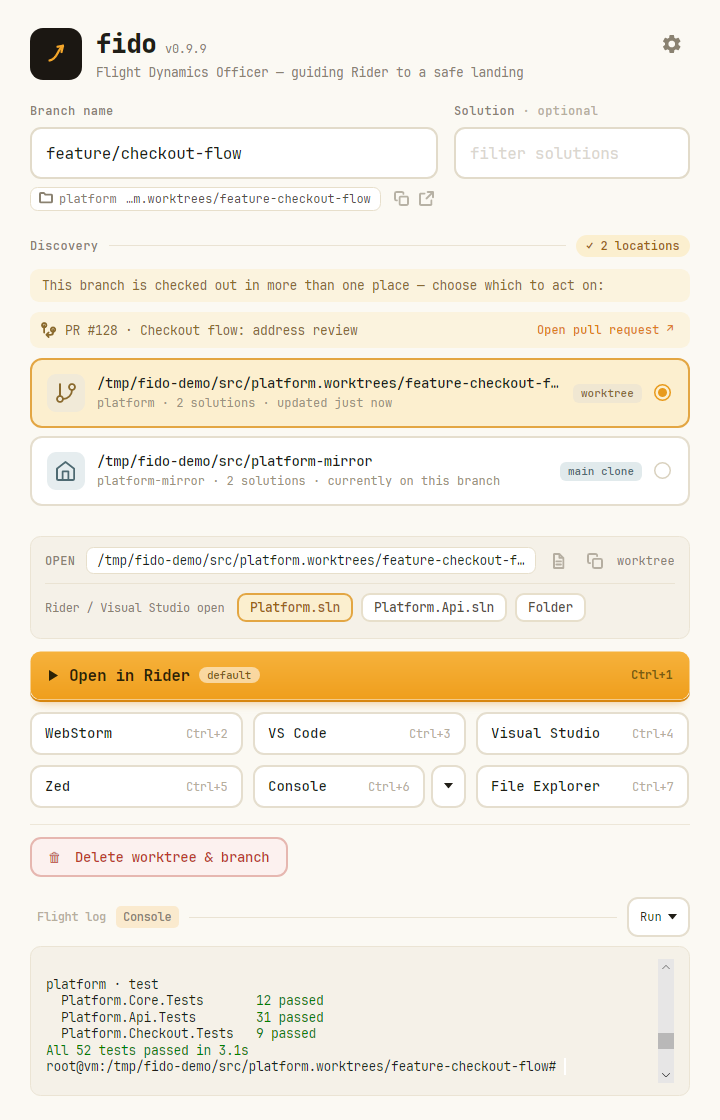
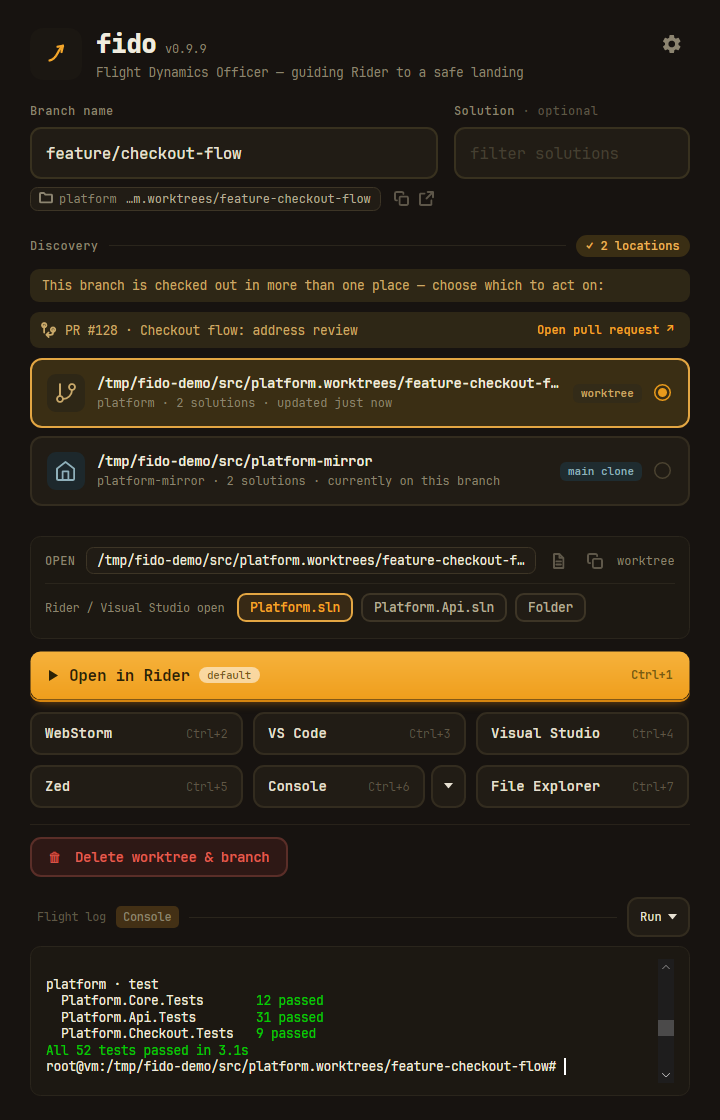
Two details of that palette are deliberate. In the light theme the Bright* colours are darker
than their base, because on a pale background emphasis means more contrast, not less. And a
contrast floor lifts anything that would otherwise land unreadable, which is what keeps
256-colour output — chosen by its author against black — legible on cream.
Either way, the change repaints what is already on screen. The shell doesn't have to be restarted and the output doesn't have to be re-run: flip the theme — from the header's toggle, from Settings, or because the OS did it at sunset — and the console turns over mid-session, scrollback and all, with a live prompt still under it. Ticking the setting itself lands the same way.
Or hand it to your own terminal
The tab is never the only way. The Console tool — the grid
button, its keyboard shortcut, or fido <branch> term — opens your terminal at the folder, and
the caret beside it runs the branch's scripts there. Which of the two a run-menu pick at that
button uses is a setting:
Settings → Before running → Run it in Fido's Console tab (off by default). Off, a pick goes to your configured terminal, as it always has. On, it runs in the tab instead. Either way the Console button itself still opens your terminal, and the Console tab's own menu still runs in the pane.