The main screen
The flight log
The panel at the foot of the screen has two tabs, sharing the same strip of window. This page is about the first of them; the second — Console, Fido's own terminal at the selected location — has its own page.
The flight log narrates each scan and launch like a flight-control "go around the horn" poll:
🚀 Going around the horn…
Scanning 24 working tree(s) for 'feature/new-ui'…
✓ Found 2 location(s) for 'feature/new-ui'.
✓ Rider located: C:\…\rider64.exe
▸ Opening Shine.sln in Rider
Fido? GO!
The Eagle has landed...
Closing in 7…
Each fresh scan resets the log and starts the poll again; the Scanning N working
tree(s)… line ticks in place as the count comes in. The Closing in N… line counts
down in place too (one line, not a line per second), and the countdown also shows in a
Keep open bar at the bottom of the window — click it to call off the close and keep
Fido up.
Lines are colour-coded by kind — accent for the mission beats (🚀, 🗑, Fido? GO!),
green ✓ for successes, plain ▸ for actions — and failures call it straight: ⚠
lines for a branch that isn't checked out anywhere, a tool that can't be located, or a
delete that went wrong.
The panel grows with the window: drag Fido's bottom edge down and every spare pixel goes to the log rather than to a gap above it — the upper section keeps as much room as its content needs, and the log takes the rest. Shrink the window again and the log falls back to its compact box while the upper section scrolls. The Console tab gets the same room, since the two tabs share the panel.
The right-hand end of the tab rule belongs to whichever tab is showing — the log's two buttons below, or the console's Run menu — so the two can never crowd each other. The log's buttons take the narration with you:
- Copy puts the whole log — every line, not just the visible ones — on the clipboard as plain text.
- Save writes it to a text file you pick, suggesting a dated name like
fido-flight-log-20260806-142317.txt.
Both are disabled until there's something to hand over, and each confirms itself in the
log (📋 Copied 8 flight-log line(s) to the clipboard., ✓ Flight log saved to …).
The window title
Once discovery resolves the branch, the window title names the work rather than the
app: the selected card's repo and the branch, with no Fido in front —
so a taskbar (or Alt+Tab) full of Fido windows tells you which is which at a glance.
The title follows the selection: picking a different card in a multi-location result
swaps the repo name with it. Anything less than a resolved branch — nothing typed yet, a
scan in flight, a branch found nowhere, a cleared branch box — reads plain Fido
again.
Prefer the title to stay put? Untick Window title · Show the repo and branch once
discovery resolves them in Settings and it reads Fido throughout.
The version badge
The running build's version sits beside the fido wordmark in the header, in small muted type on the wordmark's own baseline —
— so "which Fido is this?" is answered on screen rather than from the installed-programs list or the exe's properties. It is read from the running assembly, so it names what is actually running.
The theme toggle
Left of the ⚙ gear in the header sits a sun/moon button. Press it and the screen flips between light and dark — the whole screen, the Console tab included, shell and scrollback and all.
It flips this run only. Nothing is saved: your Theme preference in Settings is still whatever it was — System, Light or Dark — and the next launch comes up in it. So it's the button for the sun coming round onto the desk at four o'clock, not for changing your mind about the theme; for that, Settings is still the place, and what it saves takes over from the toggle.
The glyph shows the theme a press would give you, not the one you're in: a moon on the light theme, a sun on the dark one. Under System it reads whichever theme the OS is actually showing, so one press always leaves it.
The Console tab turns over with it, even mid-run: a shell that is still running repaints on the spot, scrollback and all, with its live prompt still under it. Nothing has to be restarted. This holds whichever colours the console is wearing — Fido's palette or the terminal's own sixteen — because the ground follows the theme either way.
Keyboard & shortcuts
- The branch field is focused on launch. Typing debounces into a scan; Enter fires one immediately.
- Ctrl+Space in either input opens its recently-used suggestions (the ✕ on a suggestion forgets it).
- Ctrl+1 … Ctrl+9 open the selected target with the corresponding configured tool (the same tools shown as buttons), gated — like the buttons — on discovery having found the branch. Those are the defaults: every tool, and every other action on the screen, can have a shortcut of your choosing — see Your own shortcuts.
- Esc backs out of a pending delete confirmation — or, once a delete has run, dismisses the Retry strip a part-way delete left behind.
- Settings dialog:
Entersaves,Esccancels. Alt+Spaceopens the window's native system menu (Move, Size, Minimize, Maximize, Close) on any window — the same menu reached from the title-bar icon or a title-bar right-click.
The destructive delete buttons sit outside the tab order, so Enter/Tab can never
land on them by accident.
Your own shortcuts
Every action on the main screen can have a keyboard shortcut — a single press such as F5, or a
chord: two presses one after the other, such as Ctrl+K then Ctrl+S, written Ctrl+K, Ctrl+S,
as Visual Studio and VS Code have them. Assign them in ⚙ → Keyboard shortcuts… — itself
Ctrl+K, Ctrl+S.
Out of the box:
| Shortcut | Does |
|---|---|
| Ctrl+1 … Ctrl+9 | Open the selected location with the 1st … 9th tool in your list |
| F5 | Scan for the branch again |
| Ctrl+, | Settings… |
| Ctrl+K, Ctrl+S | Keyboard shortcuts… |
| Ctrl+K, Ctrl+T | Flip light / dark — the theme toggle |
Everything else starts with no shortcut, ready for one: open in the default tool, go to the branch
box or the solution filter, select the next or previous location, copy the selected path,
create or edit .fido/cfg.yaml, open the pull request, delete the worktree, show the flight
log or the Console tab, and copy or save the flight log.
A shortcut does exactly what its button does, gates included: a tool's shortcut does nothing until discovery has found the branch, and the delete shortcut only raises the confirm strip — the Delete click is still yours to make.
Chords
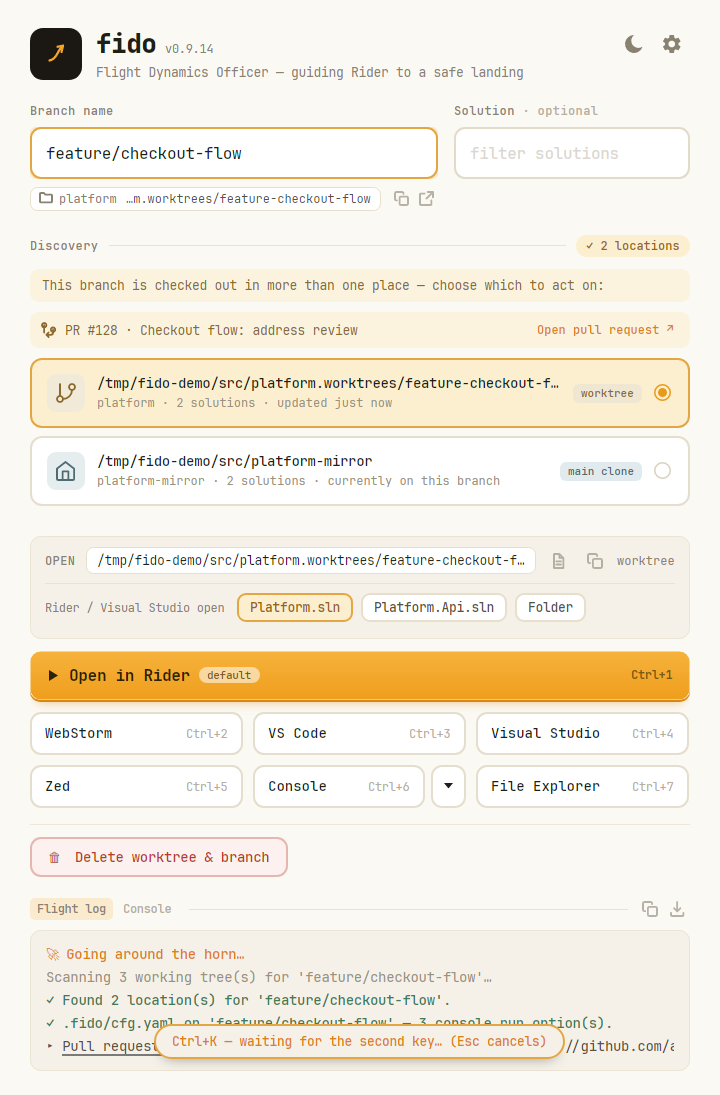
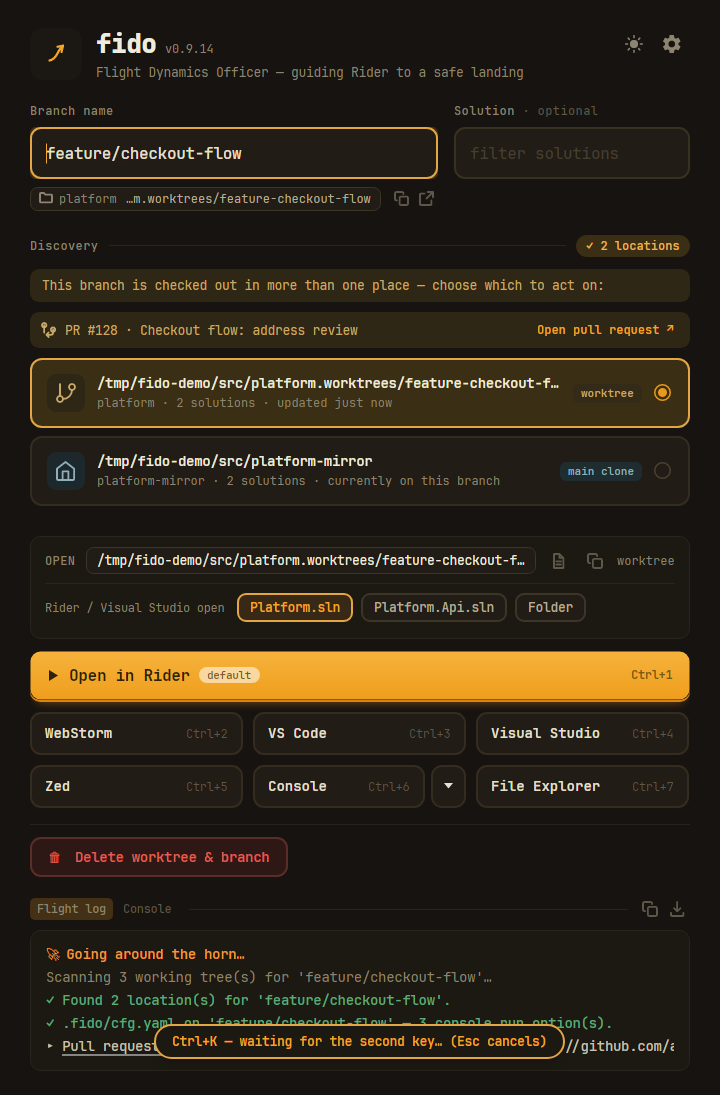
Press the first half of a chord and a pill at the foot of the window says Fido is waiting for the second.
It waits as long as you take; Esc, a click, or switching to another window calls it off. A second
press that finishes no chord is reported in the same pill — Ctrl+K, X isn't a shortcut — rather than
silently dropped, and whatever it was, the second press never types into the box you're in: the T
of a Ctrl+K, T doesn't leave a t behind in the branch name.
Assigning one
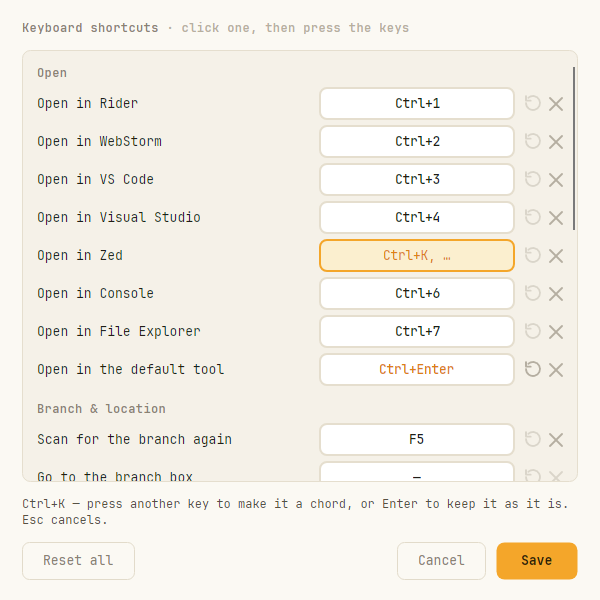
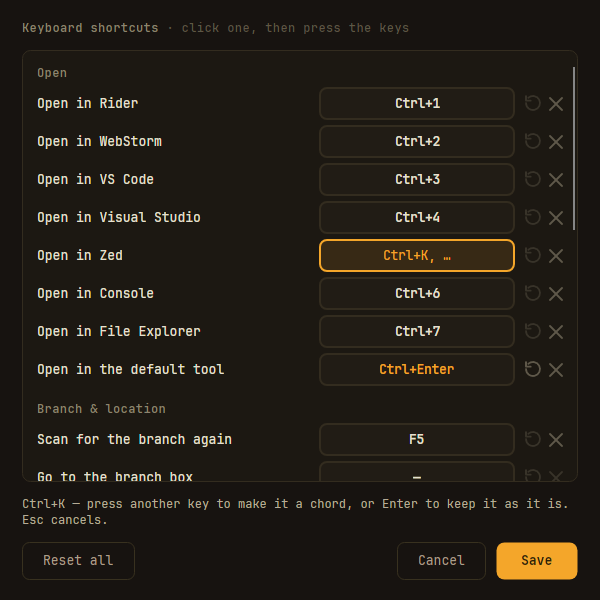
⚙ → Keyboard shortcuts… lists every action — your tools first, then the rest, by group. Click a shortcut, then press the keys:
- a second press makes it a chord, and assigns it there and then;
- Enter after the first press keeps that one press as the whole shortcut;
- Esc — or clicking away — leaves it as it was.
↺ puts a row's default back and ✕ takes its shortcut away; Reset all puts back every default. Anything that differs from the defaults reads in the accent colour, and nothing is changed until you Save.
A shortcut has to start with Ctrl, Alt or Win / Cmd held down — or with a function
key — because anything else is typing: a shortcut on plain K would take the letter from the branch box.
The second press of a chord can be any key. Alt+Space and Alt+F4 belong to the system and are
refused.
No two actions share keys. Give one action keys another already has, and they move — the line under
the list says where from. That includes a single press that is where a chord starts: with Ctrl+K bound
on its own, Ctrl+K, Ctrl+S could never be reached, so whichever you assign last takes the keys from the
other.
A tool's shortcut belongs to the tool: remove a tool from the list and its shortcut goes with it, rather than passing to whichever tool moves up into its place. A tool you've never given a shortcut keeps answering to its number.
Where shortcuts stand aside
- In the Console tab, every key is the shell's.
Ctrl+KandCtrl+Lmean something to a shell, and a console that lost them to Fido would be no console. Click outside it and the shortcuts are back. - A key the focused box uses itself stays the box's. Bind Ctrl+C to something and it still copies in the branch box — and does your something everywhere else. Enter rescans from the boxes, but Ctrl+Enter, Alt+Enter and the like are left free to be shortcuts there.