Screenshots
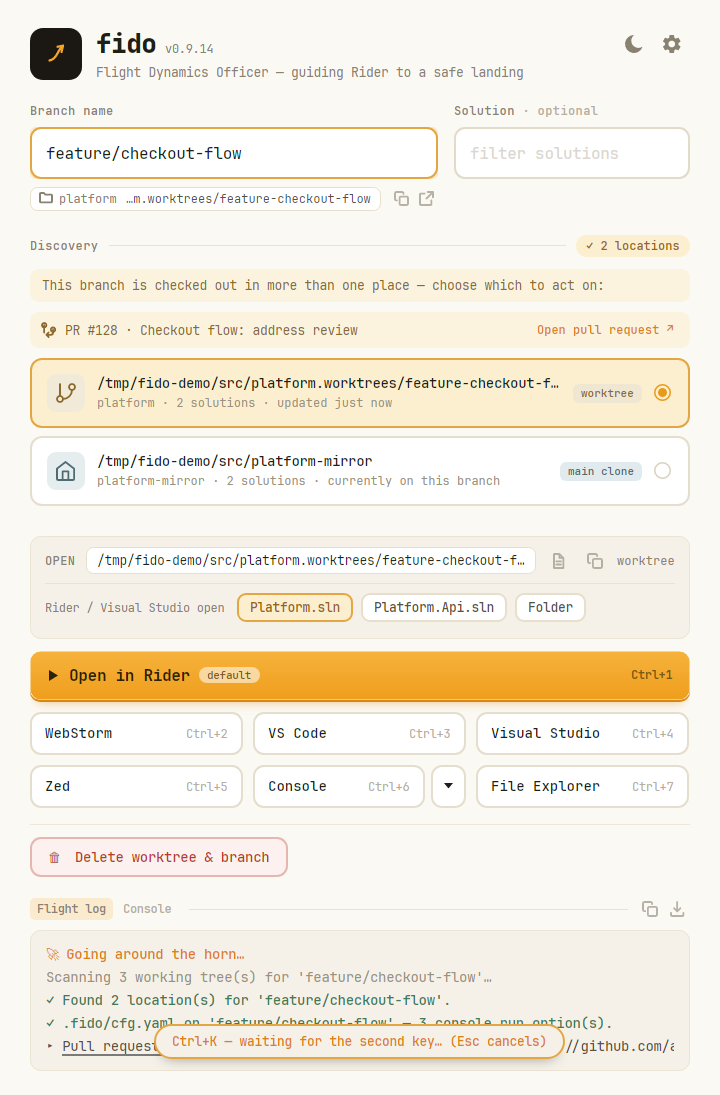
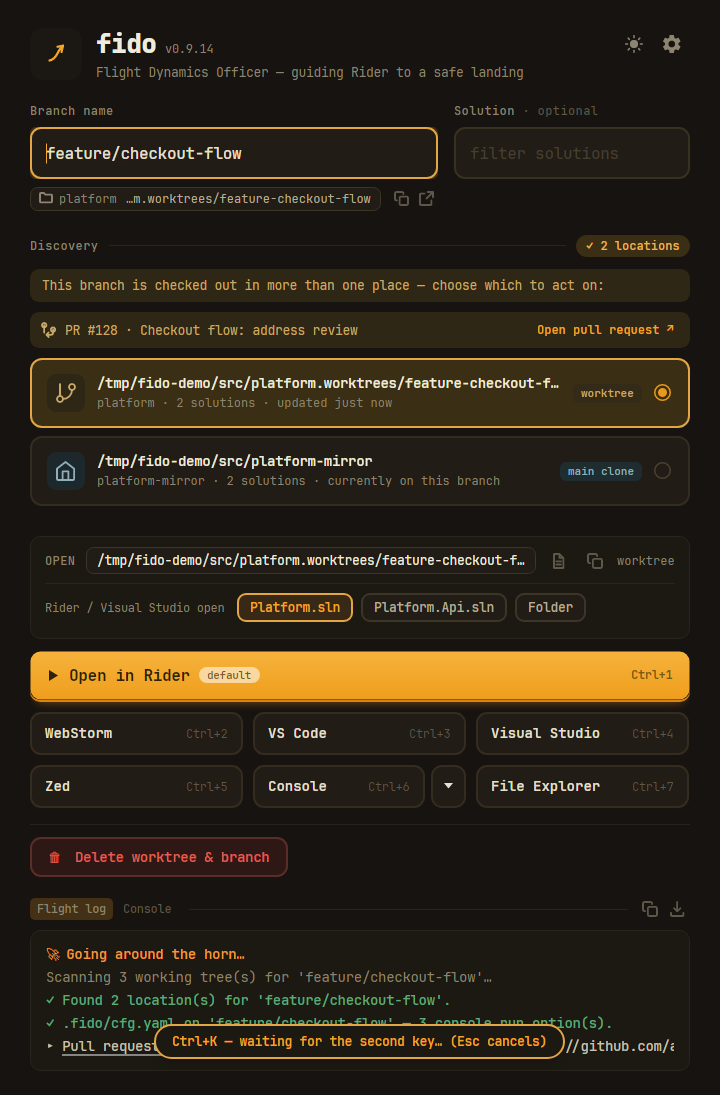
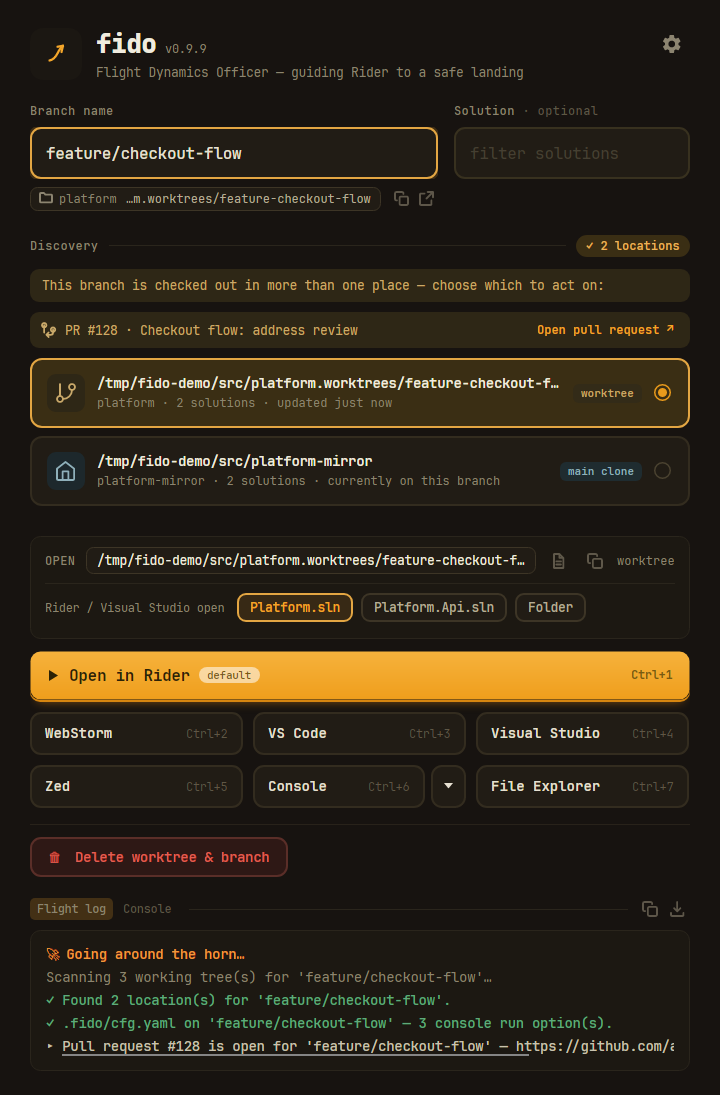
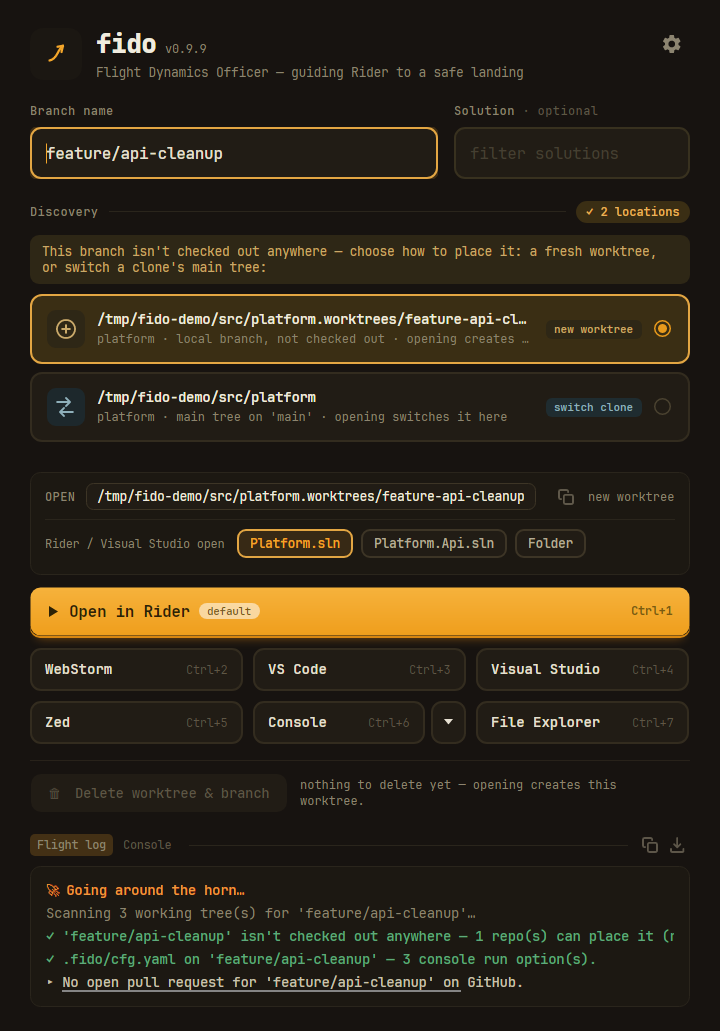
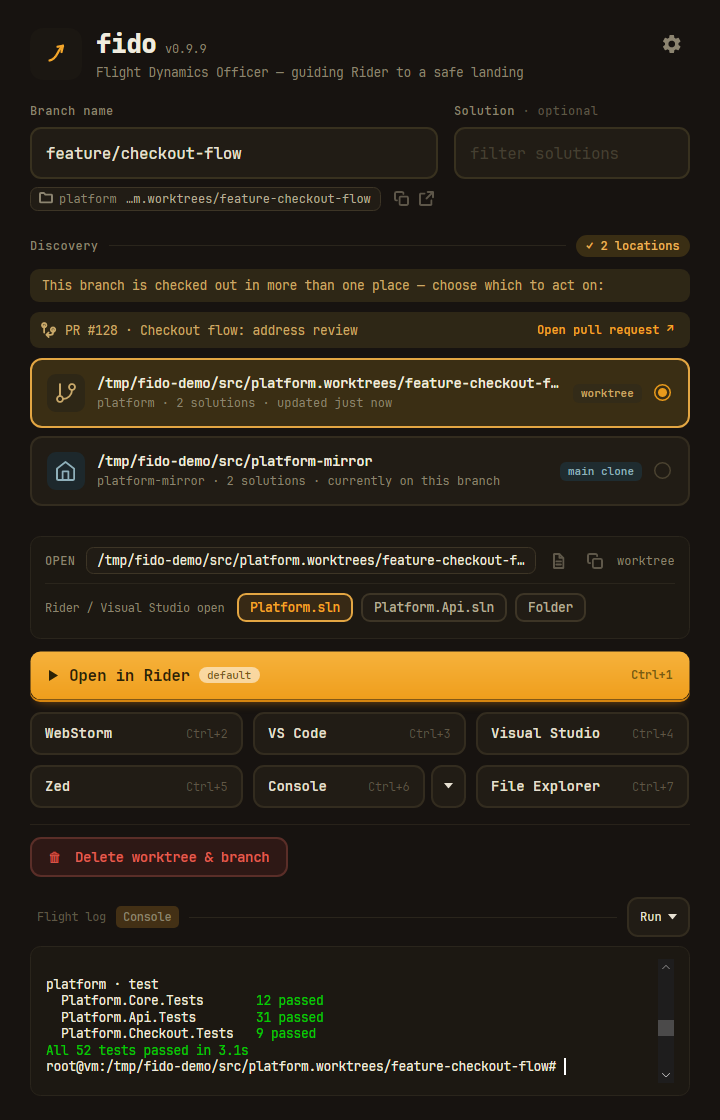
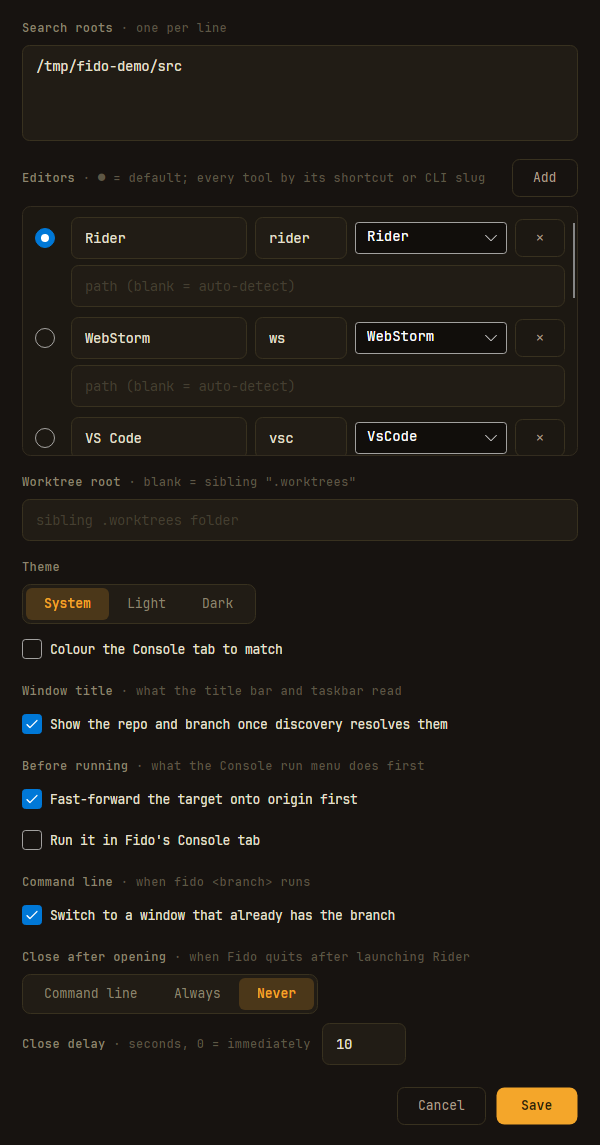
A visual tour of Fido. Each shot follows the theme you are reading in — switch the palette in the header and the screenshots switch with you. See The main screen and The Console tab for the full behaviour reference.
Home screen
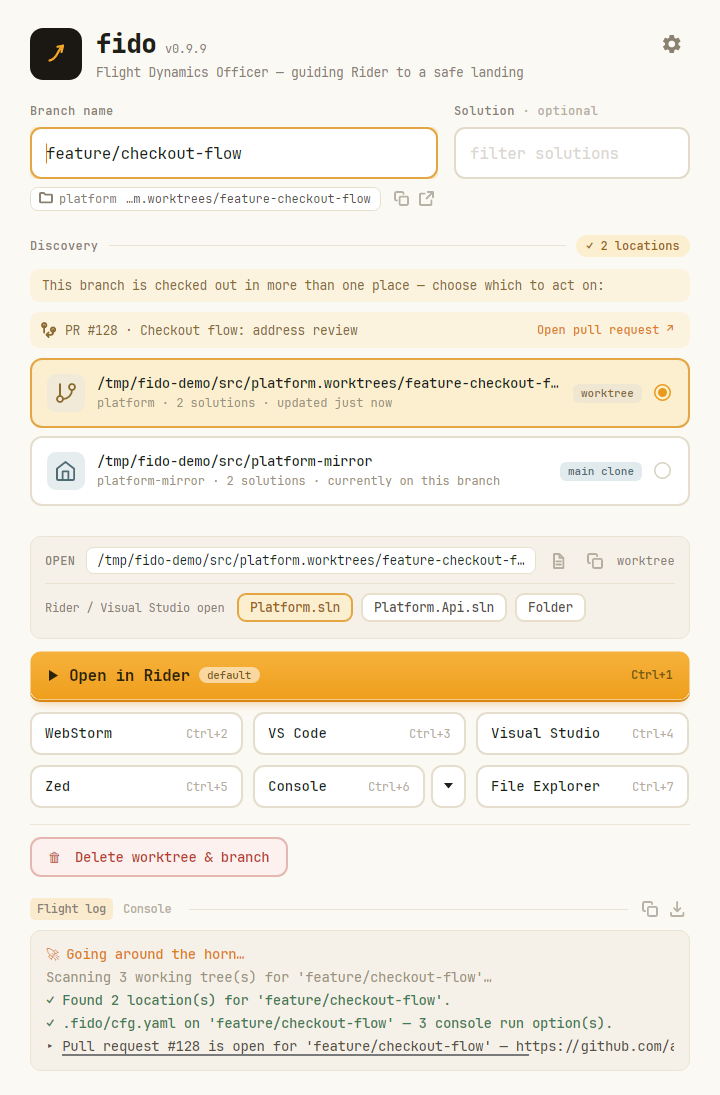
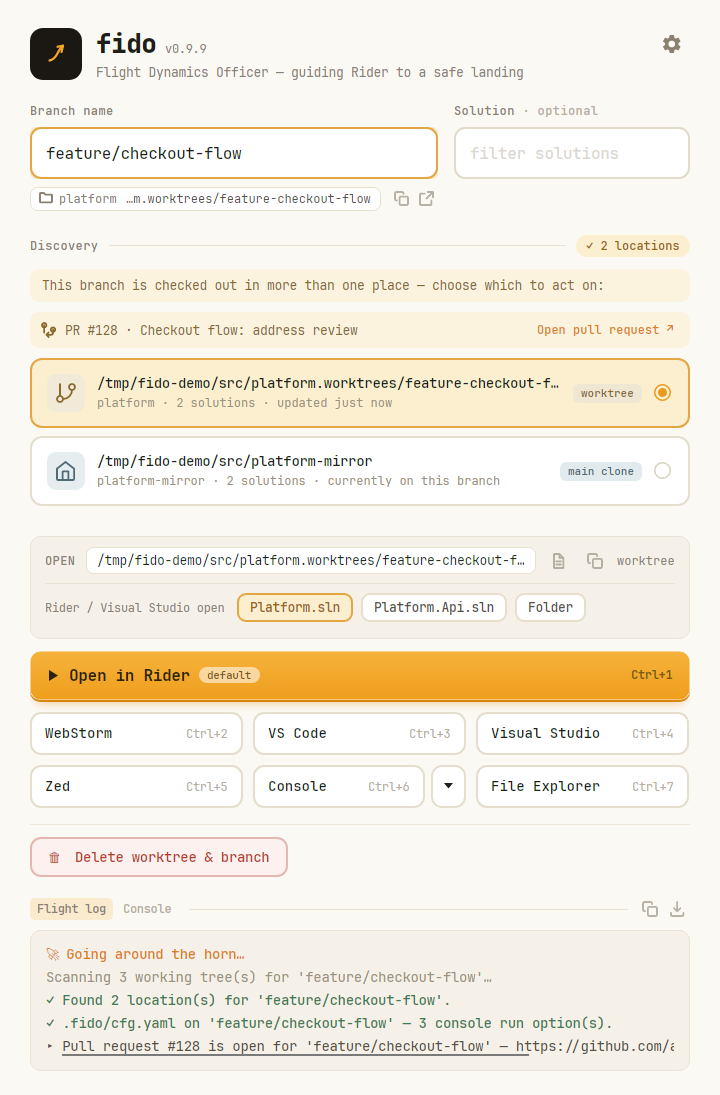
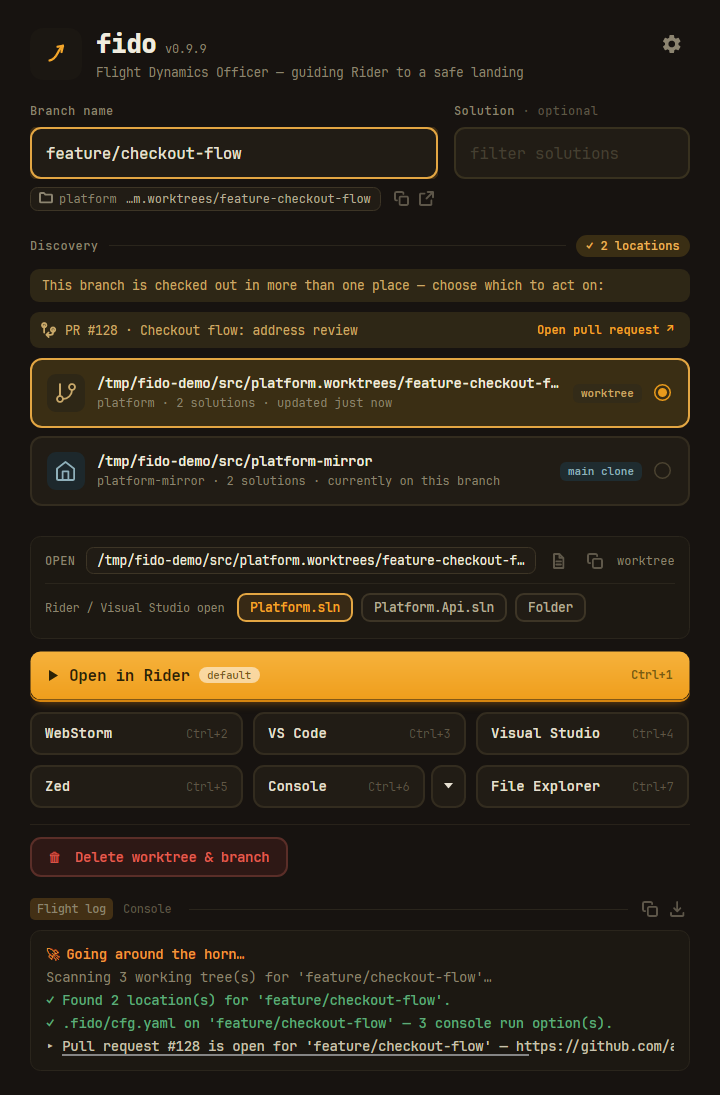
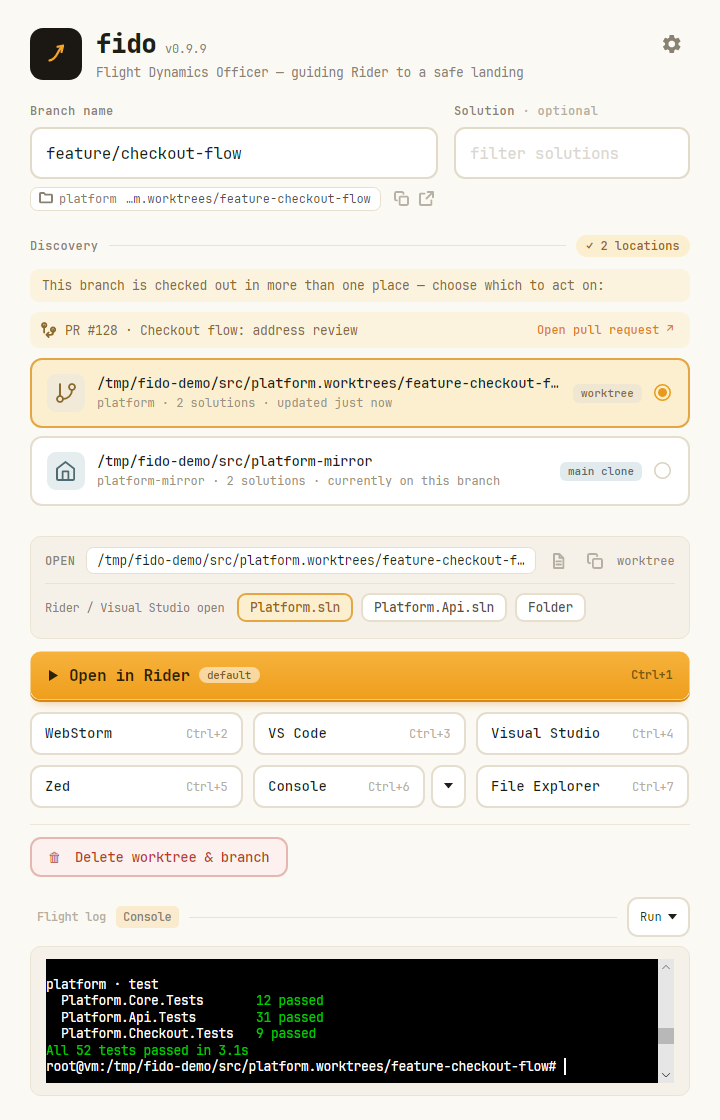
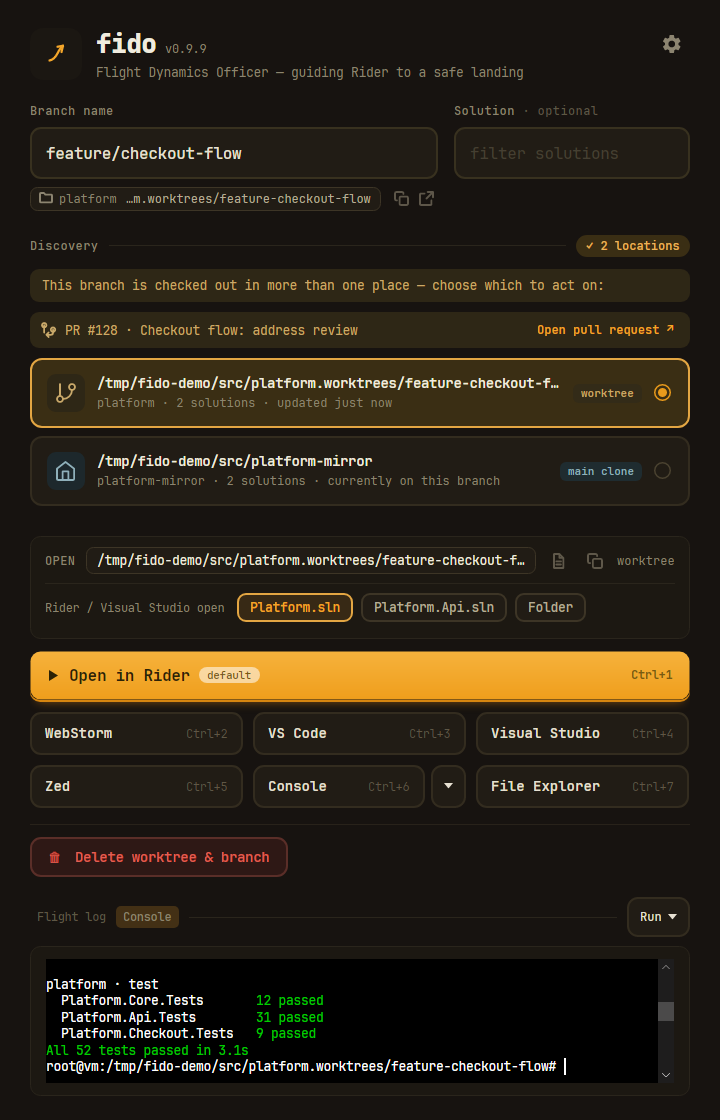
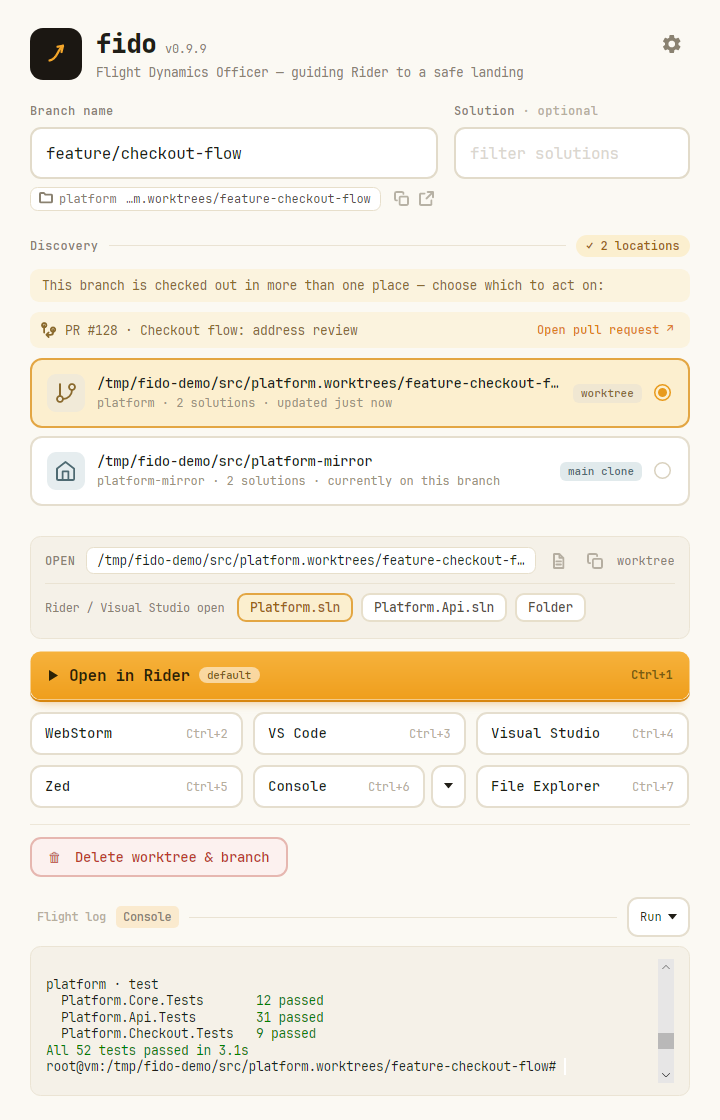
Mission control — one window, one screen. Type a branch name and Fido scans your search roots for every working tree currently on it; the results render inline as selectable cards. The open actions below stay locked until discovery finds the branch, then the big amber button launches your default tool (the rest sit in the grid, Ctrl+1 … Ctrl+9). The panel at the foot carries two tabs: the Flight log, reporting each step as Fido "goes around the horn", and the Console.
Above the cards sits the branch's open pull request, when it has one — PR #128 · Checkout flow:
address review, one click from the browser. Fido asks GitHub afresh on every scan that finds the
branch, so the row reports the PR as it stands rather than as it once was; see
The branch's pull request.
Discovery results
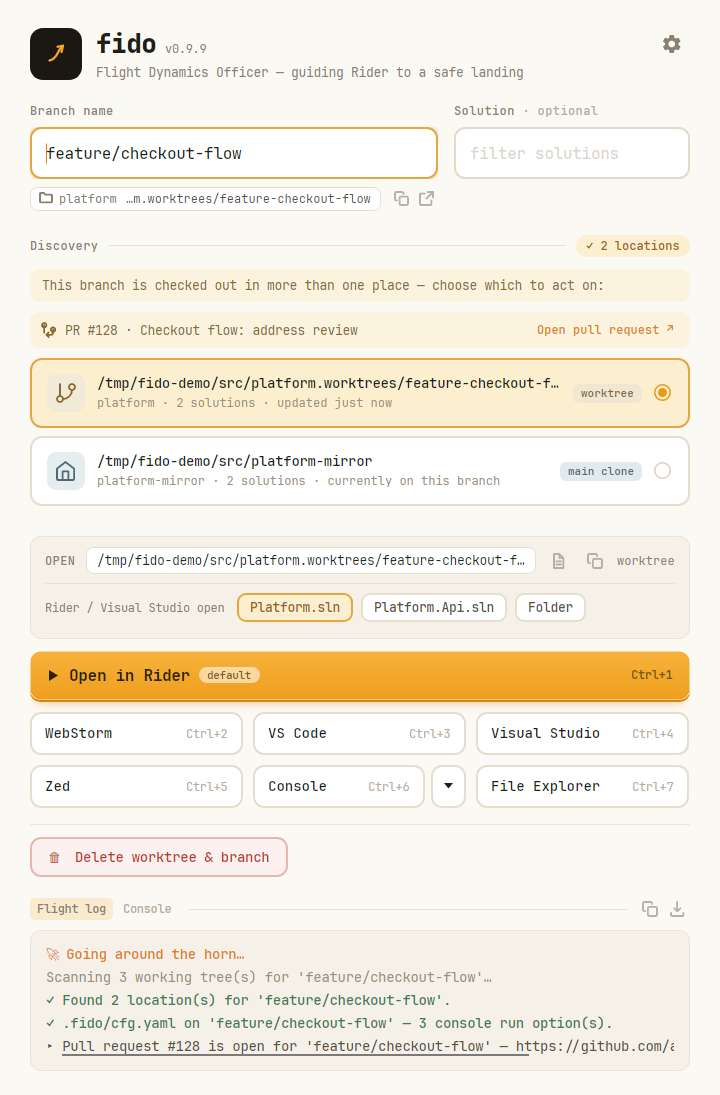
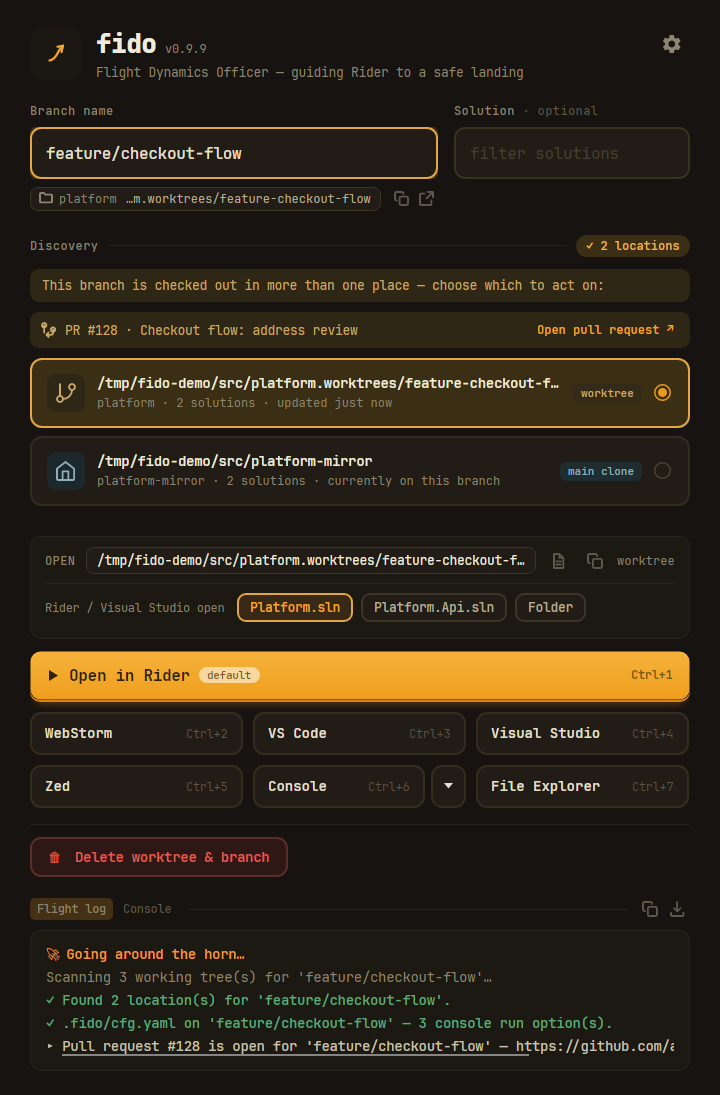
When a branch is checked out in more than one place, every location gets its own card — labelled worktree or main clone, worktrees first — and you choose which to act on. The context strip shows the selected target with a chip per detected solution (plus Folder); Rider and Visual Studio open the chosen chip, every other tool opens the folder. The Solution box filters the chips.
A branch with no open pull request simply has no row — and the flight log says which of the two
silences it is, so a missing gh is never mistaken for a branch that is clear to delete.
Placing a branch that isn't checked out anywhere
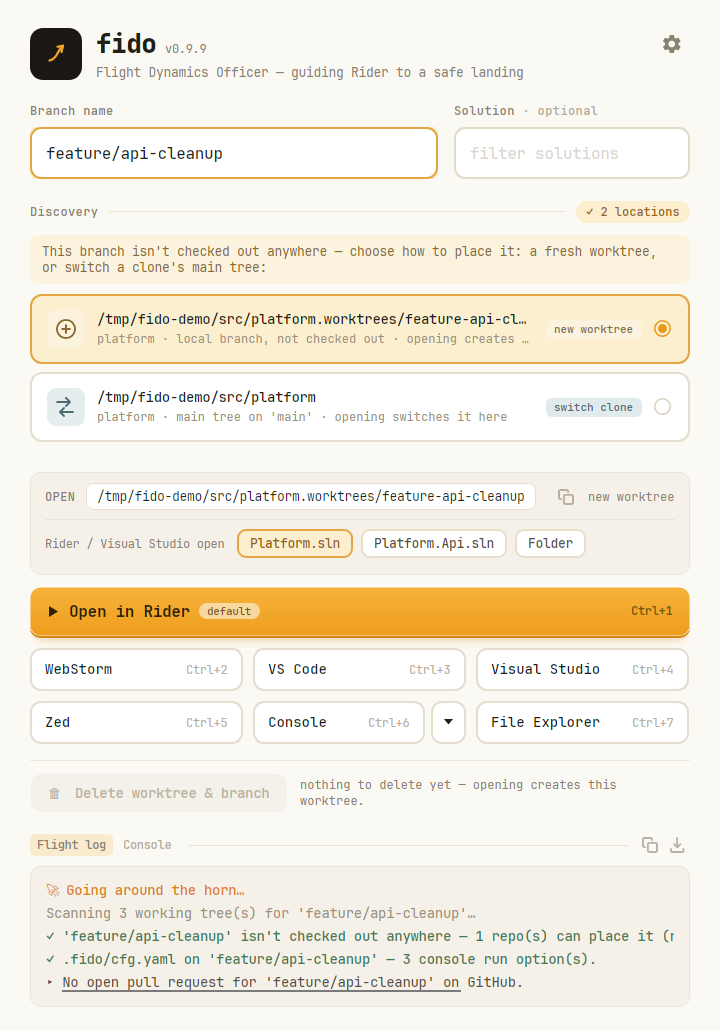
When no working tree has the branch but a scanned clone's refs do (locally, on origin, or found by
a live ls-remote for a branch you never fetched), each such clone offers two placement cards:
a new worktree (leads, auto-selected) showing where it would be created, and a switch clone
that moves the clone's main tree onto the branch — warning inline when uncommitted changes would
ride along. Opening performs the placement first, then launches.
Delete a worktree
When the selected card is a linked worktree on a non-default branch, the Delete worktree & branch button beneath the tools is live (selecting the main clone — or a default branch — disables it with a note saying why).
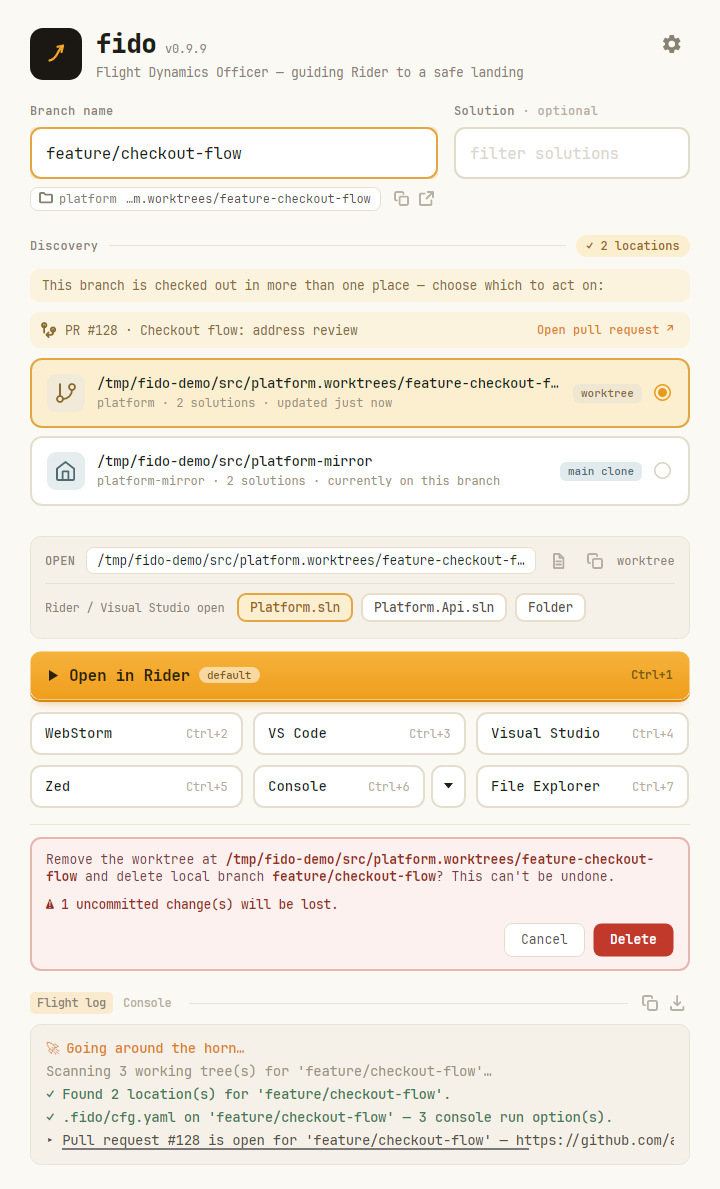
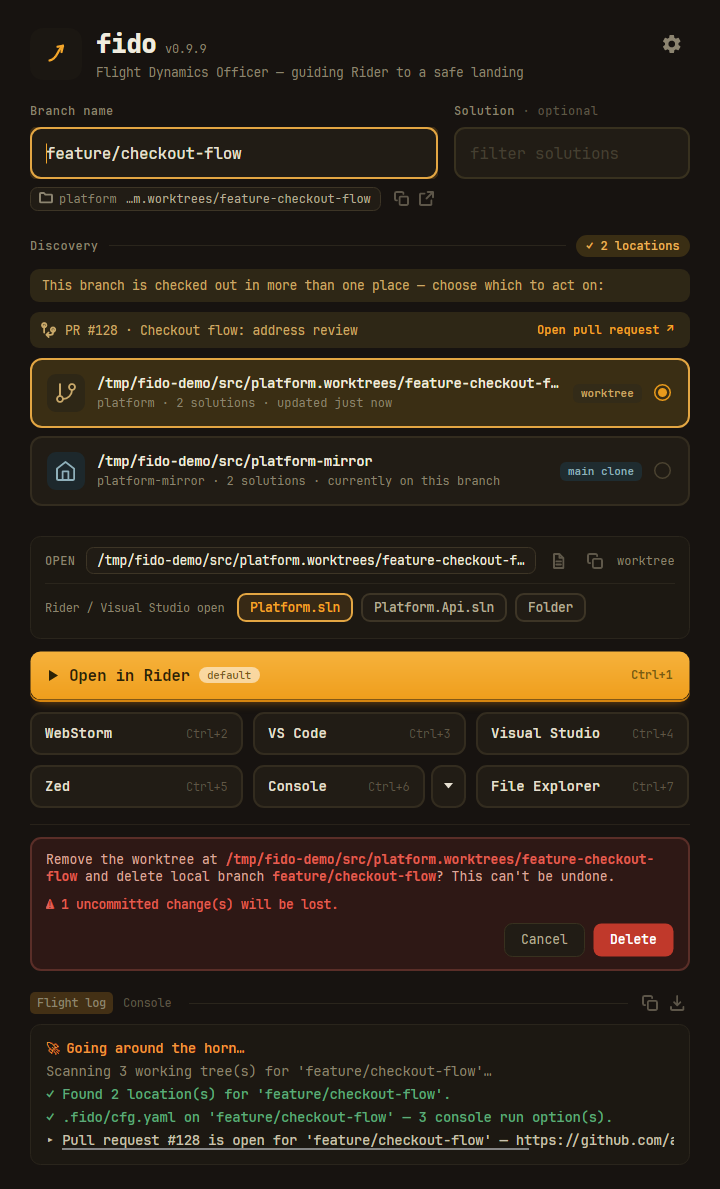
Clicking it swaps the button for an inline confirm strip that spells out exactly what happens —
remove the worktree and delete the local branch (the branch on origin is never touched) —
with warnings when the worktree has uncommitted changes or commits that exist only on that branch.
Cancel or Esc backs out; only the explicit Delete click confirms.
The Console tab
The second tab under the open actions is Fido's own terminal, at the selected location — a real shell over a real pseudo-terminal, so colour, prompts and Ctrl+C all work and a failed script leaves its output on screen with a live prompt underneath. It is not the Console tool, which opens your terminal at the folder; see The Console tab for the difference.
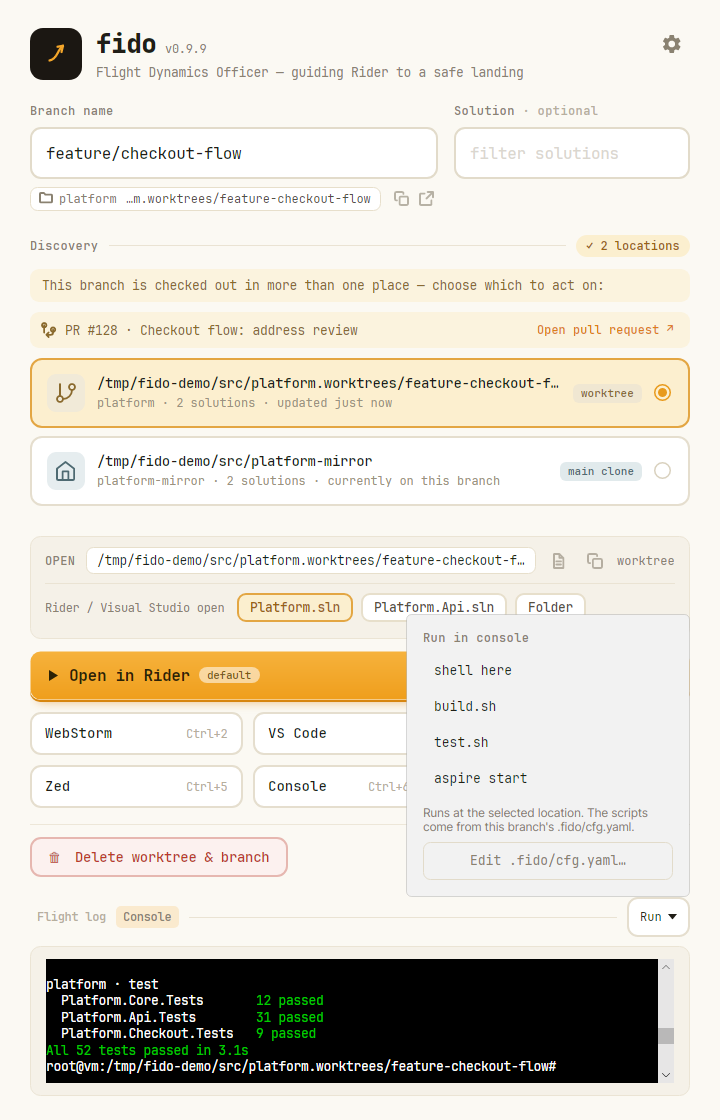
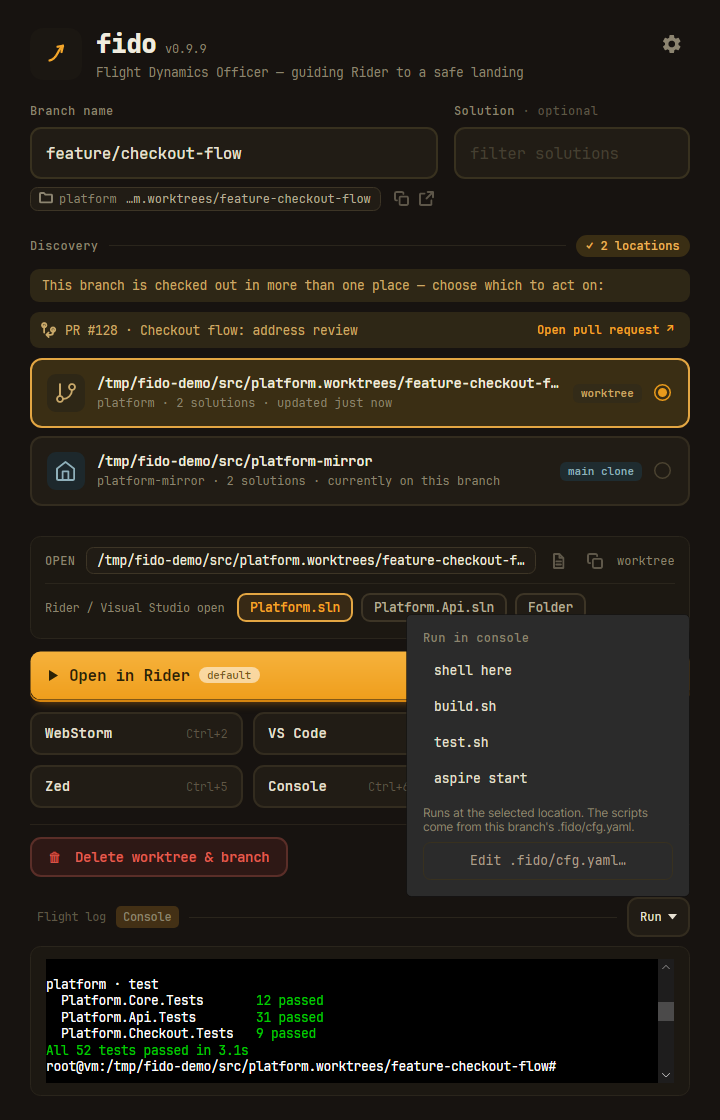
The Run menu at the right of the tab rule leads with a plain shell here, then lists what
the branch's .fido/cfg.yaml nominated — its commands — with
Edit .fido/cfg.yaml… at the foot. Every pick runs in the pane below it.
The console keeps the terminal's own colours by default. Tick Settings → Theme → Colour the Console tab to match and it takes Fido's palette instead — the flight log's own greens and ambers, following the theme.
Settings
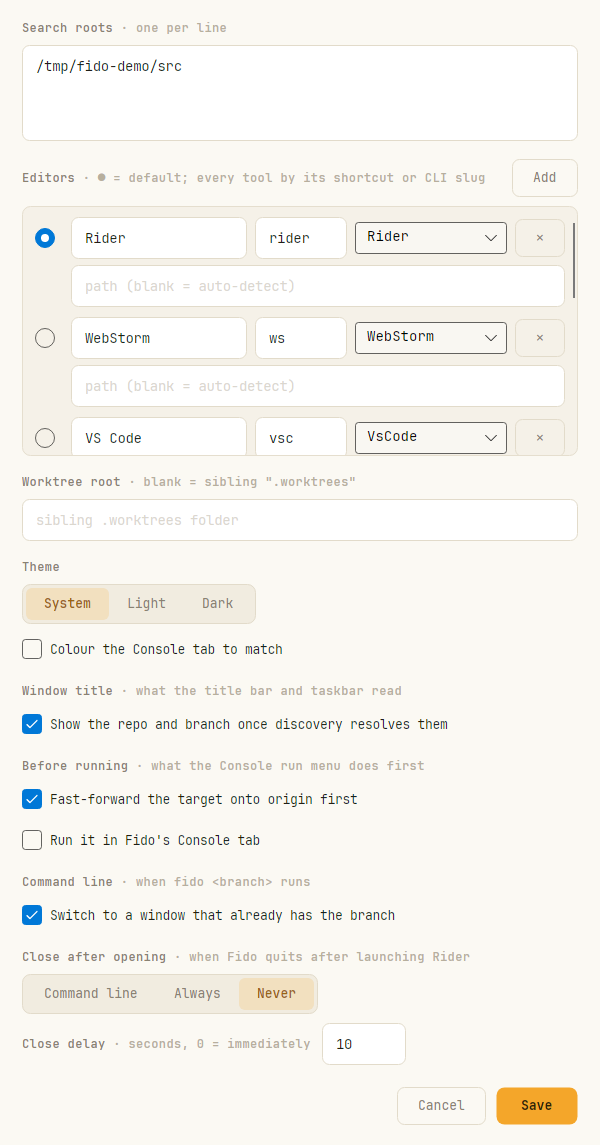
The ⚙ gear popover picks the default tool (or No default for the equal-weight grid);
All settings… opens the full dialog to configure search roots, your editors (each with
a CLI slug, with the default marked ●), the worktree root, theme, what the window
title reads, what happens before running a command — fast-forward the target, and whether a
run-menu pick lands in Fido's Console tab or your own terminal — whether
fido <branch> switches to a window already open on the branch — and the close-after-opening
behaviour and delay.
Keyboard shortcuts
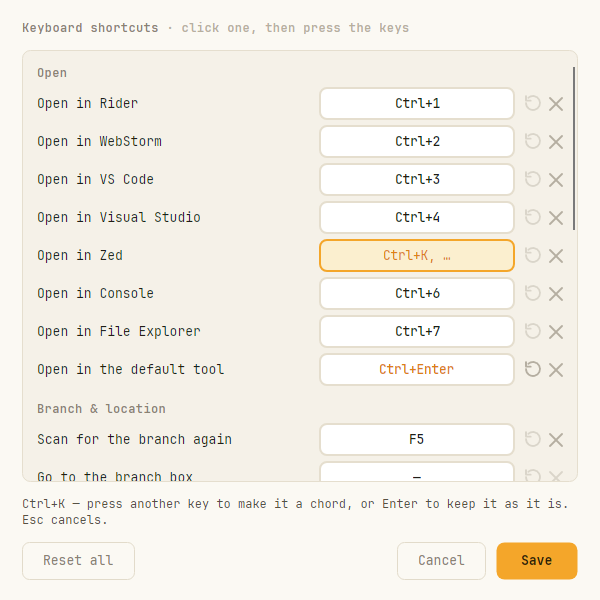
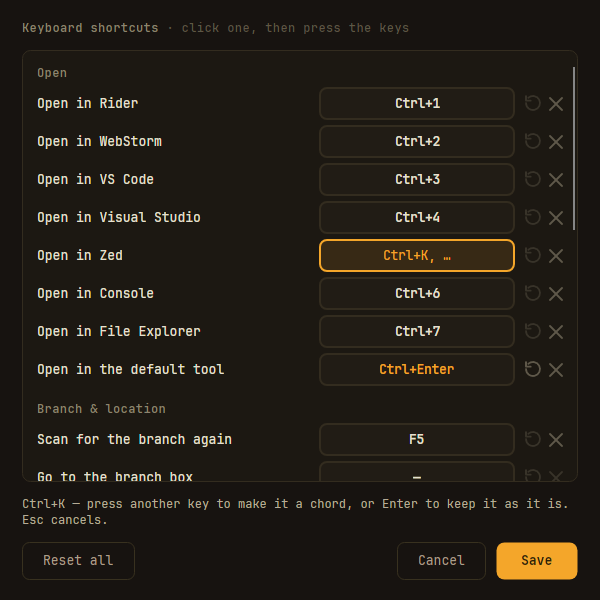
⚙ → Keyboard shortcuts… — or Ctrl+K, Ctrl+S — lists every action on the main screen with its
keys. Click one and press the keys: a second press makes it a chord, Enter keeps the single press.
Keys that differ from the defaults read in the accent; here Open in the default tool has been given
Ctrl+Enter, and Open in Zed is half-way through recording a chord. See
Your own shortcuts.
Press the first half of a chord on the main screen and a pill at the foot of the window waits for the second — Esc or a click calls it off.